AI video generator for a shot worth keeping

Use the MAGI-2 AI video generator to turn a still composition or a written scene into movement. Decide what happens between the first frame and the last, then try the shot.

Directing motion

What should the AI video generator move?

A clip can be busy without telling the viewer anything. Start by deciding what changes the meaning of the shot. A gaze shifts toward someone outside the frame. A door swings open and reveals a courtyard. Give the AI video generator the action that matters, then choose the viewpoint from which that action reads most clearly.

01

Direct the subject in the AI video generator

Give the AI video generator a physical action with a beginning and an end. A cyclist enters from the left, brakes beside a gate and rests one foot on the ground. A fixed viewpoint makes it easy to judge the change in speed and the final pose. Review the entrance and the stop separately. If the cyclist appears too late, begin with the rider already visible at the edge.
02

Move the camera for a reason

Ask the AI video generator for a camera move when it reveals something the viewer needs. Following someone around a corner can bring a second person into view. An approach toward a hand can show the key it holds. Name the distance or framing you want at the end. This gives you a way to evaluate the movement even when the result differs from your original AI video generator brief.

03

Give the AI video generator an opening frame

With a compatible image input, an opening frame can establish the subject, lighting and relative positions before you ask for movement. Tell the AI video generator what remains stable and what changes. If the reference shows a folded map, describe the hand opening one fold and the camera holding on the newly revealed line. Avoid filling that same short shot with several unrelated gestures.

Shot studies

Three briefs to test in the AI video generator

Treat these ideas as camera exercises. A quiet action gives you a chance to see exactly where the viewer looks. Try a single change in the AI video generator and compare the result with the intention you wrote down.

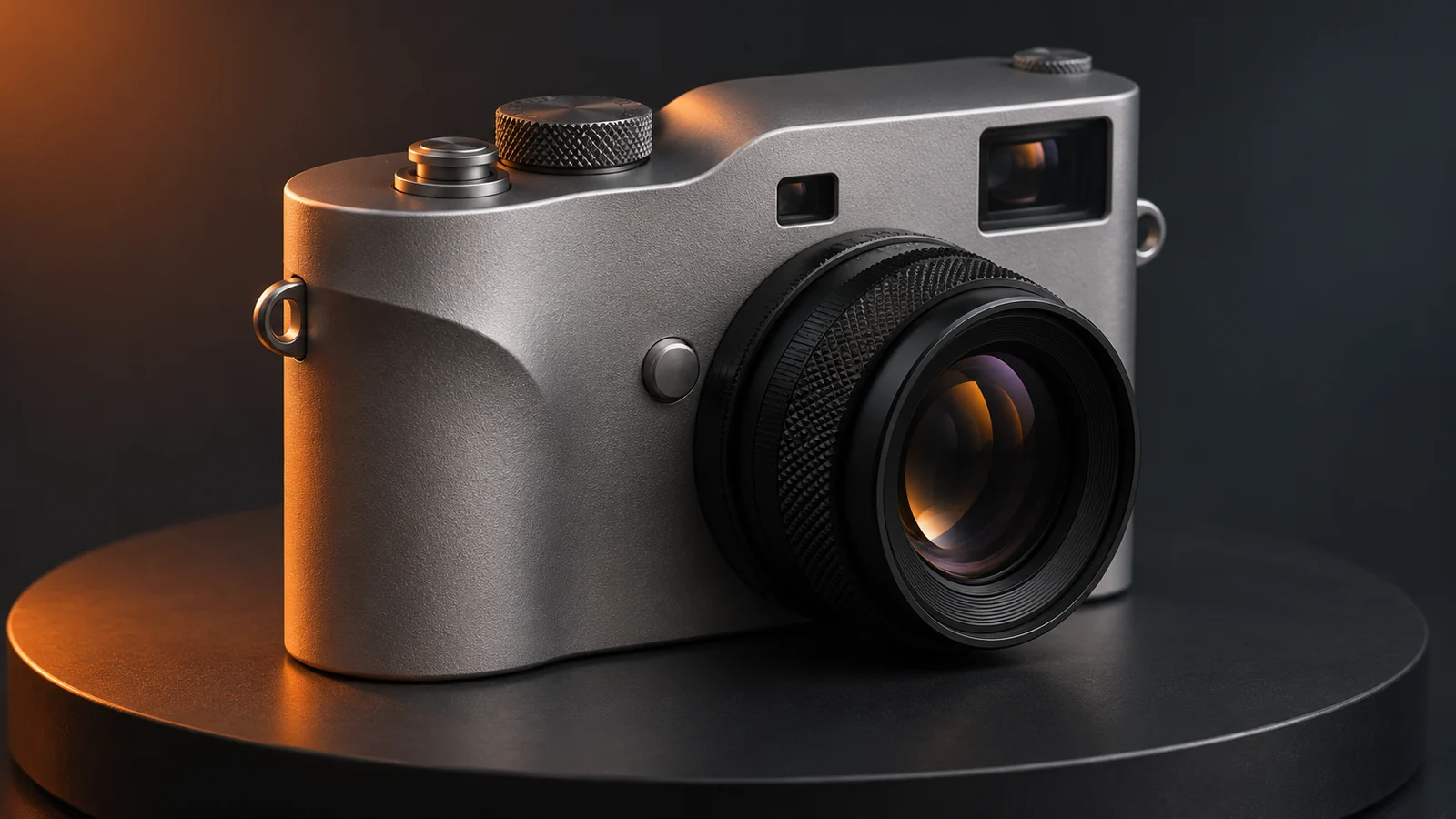
A metal camera dial seen in close-up
Close view

Reveal one detail

Ask the AI video generator to move closer only until the important detail fills the frame. Leave the subject still so the AI video generator camera move has a clear purpose.

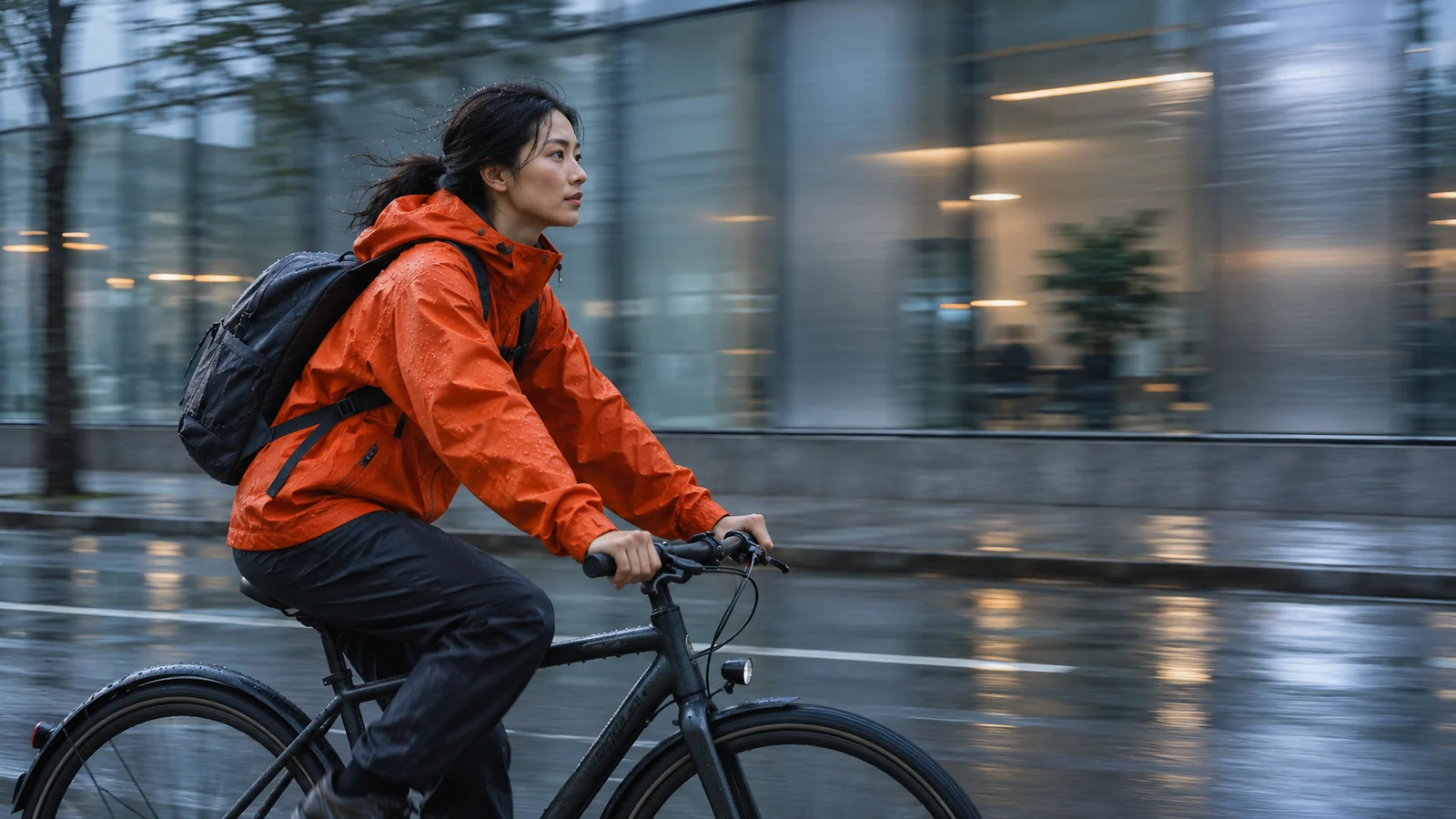
A cyclist in an orange raincoat beside a glass building
Tracking shot

Follow the crossing

Give the AI video generator an entrance, a direction and an exit. Keep a stationary landmark in view to make the distance traveled visible.

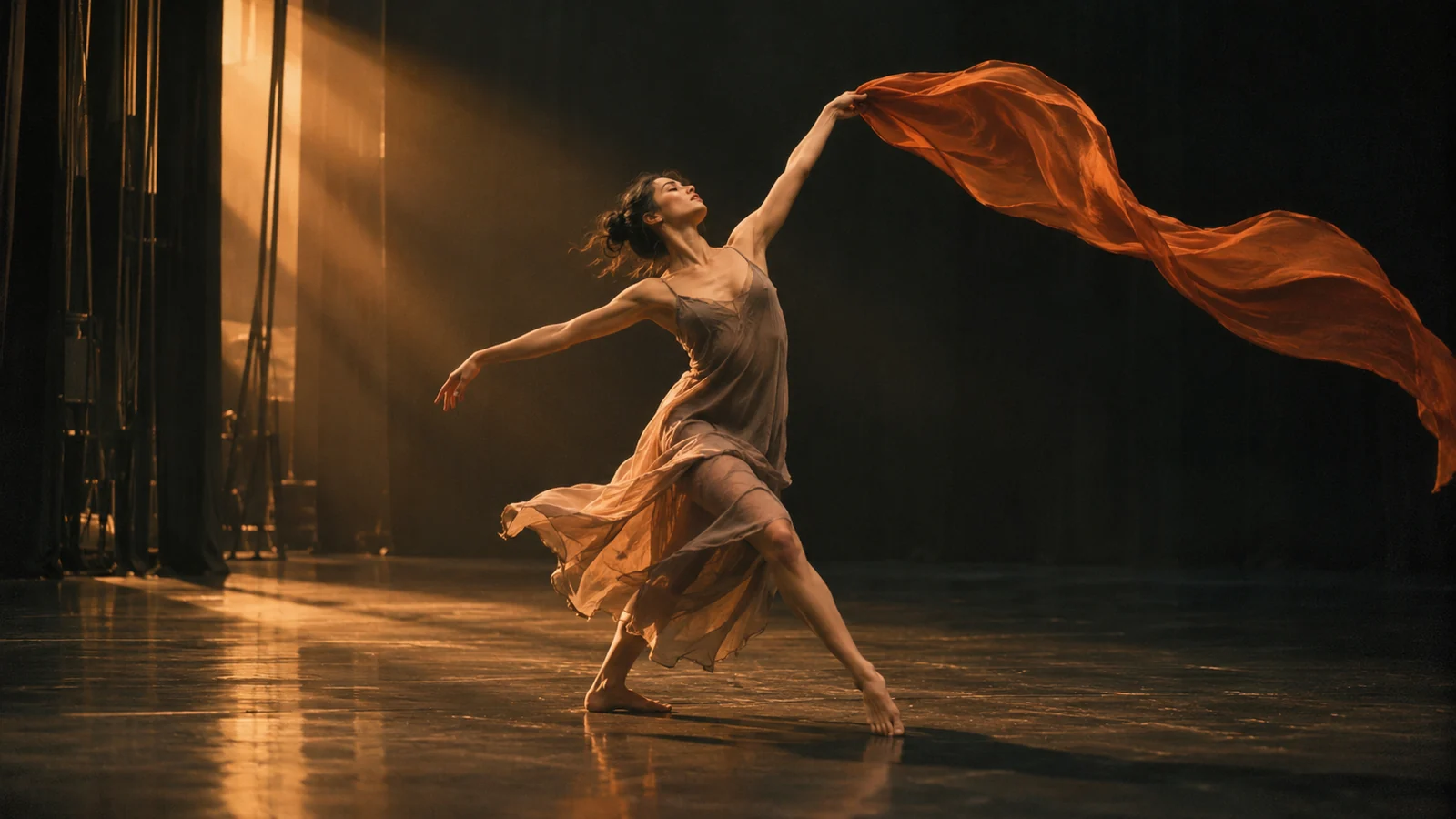
A dancer with an orange scarf on stage
Cutaway

Hold through the pause

Keep the camera fixed in the AI video generator. Let a small secondary motion continue after the main action stops, giving the editor a place to cut.

Prompt to preview

Build an AI video generator take in four decisions

Think in screen time. If the first version asks the viewer to notice three unrelated things at once, split the idea into smaller shots. Use the AI video generator for one clear beat and judge it in the order an audience would experience it.

  1. 01

    Sketch the first and last frames

    Write a short description of each frame. If both describe the same visible moment, give the AI video generator a change that connects them. If they describe entirely different locations, consider making separate shots. A camera turn from a hand on a door to the person entering the room is easier to review than a paragraph that jumps between several places and times.

  2. 02

    Choose an AI video generator mode

    In the AI video generator, select text when the scene can be described from scratch, or a compatible reference mode when the opening composition is important. Check the options displayed for the selected model. Think about where the clip will be used. A vertical frame might need extra headroom for a gesture that fits easily across a wide frame.

  3. 03

    Set a pace the viewer can follow

    Describe movement using familiar timing cues, such as a steady walk followed by a brief pause. The AI video generator has more direction from that sequence than from a stack of words like fast, slow and dramatic. Watch the AI video generator preview once without pausing. If the action is hard to read, remove a competing movement or start the shot closer to the decisive moment.

  4. 04

    Review the AI video generator take before cutting

    Look at the first frame, the moment of change and the ending. Watch for altered outlines or an abrupt shift in the background. For another AI video generator pass, keep the useful part of the prompt and revise the transition that failed. If the first half already works for the edit, try trimming there before spending another generation on the entire shot.

Production questions

AI video generator questions

What you need for a storyboard presentation can differ from what you need for a finished sequence. Use the destination and the edit to choose what to test next.

Should I give the AI video generator a long prompt?

Write enough to locate the subject, establish the space and describe the movement in order. A single camera instruction often does more work than several style adjectives. Read the instruction out loud and mime the action. If you need to stop and change viewpoint to explain it, ask the AI video generator for two separate shots and join the selected takes in your edit.

Why does my AI video generator take end so wide?

Check whether your brief asks the subject and the camera to move away from each other. Tell the AI video generator which should carry the movement and describe how large the subject should be at the end. If the surroundings matter most, a wider finish can be useful. If the last expression matters, keep the camera close enough that a viewer can see it.

How can I use reference images in the AI video generator?

Choose a mode that offers image input. Match the reference crop to the intended composition and check that the part you want to animate is visible. Then tell the AI video generator what happens to that part. A sleeve already cut off at the edge gives little context for a hand gesture. A looser starting picture leaves room for the movement.

How can I plan a sequence with the AI video generator?

Choose one repeatable visual cue across the shots, such as direction of travel, the side of a face in light or the color of a doorway. Describe it consistently in each AI video generator prompt. Lay the AI video generator previews in order and watch the cuts at normal speed. A small difference in a prop may matter less than a subject suddenly moving in the opposite direction.

Where does the AI video generator show duration and credits?

Review the options visible in the AI video generator for the mode and model you selected. Check the estimated credits before submitting and again after changing a setting. If you are testing a framing decision, keep the rest of the setup steady. That way you can judge whether the revised frame helped without also having to compare a different action or camera speed.

MAGI-2

Direct your first AI video generator take

Choose a gesture, a camera position and an ending. Test them in the AI video generator above and review the moment where the story changes.