

MAGI-2 AI Video Generator

Sign in to claim 100 starter credits and begin creating

Picture and sound

What fits in a MAGI-2 take?

MAGI-2 generates up to 30 seconds of 1080p video at 25 frames per second. That gives a scene room for an entrance, an exchange and a reaction. You can write each beat yourself or give MAGI-2 the action and let it plan the coverage.

  • 01

    Dialogue with a listener in the room

    Give MAGI-2 a line and name the person who says it. When a guest asks for the last table, keep the camera on the host for a moment after the question. MAGI-2 generates speech with lip movement, so you can listen for the pause and judge whether the host’s glance reads as a welcome or a refusal.

  • 02

    Sound with a source on screen

    MAGI-2 can generate music, ambience and the sounds that objects make. Describe a potter setting a cup on a wooden table. Ask for a soft knock when the base touches the wood and let the wheel hum in the background. Keeping those sounds distinct makes the contact legible even in a wide shot.

  • 03

    Composition that survives a cut

    Choose from six aspect ratios. Tell MAGI-2 where the subject enters and what should still be visible when the camera moves closer. For a vertical café scene, place the guest in the doorway behind the host. A MAGI-2 close-up can then pick up the host’s reaction without losing the relationship you established.

Timeline direction

A MAGI-2 shot list for a rainy street

The same ten seconds can feel like a commute or the beginning of a mystery. Try this MAGI-2 brief twice, moving only the cut. Listen for the bell in both versions and watch where your attention goes.

A cyclist in an orange raincoat passing a glass building after the rain
  1. 01

    Open on the approach

    From zero to four seconds, a cyclist rides along a glass façade. Keep the camera across the road with the rider moving left to right. Give MAGI-2 one identifying detail, an orange coat, that will read both on the cyclist and in the reflection.

  2. 02

    Let the bell motivate the cut

    At four seconds, ring the bell once and cut to the window. Follow the reflected wheel for three seconds. With MAGI-2 timeline control you can assign a shot boundary to a particular beat. Try moving the bell just ahead of the cut to draw attention to the window before the picture changes.

  3. 03

    Give the ending time to register

    For the last three seconds, let the wheel stop while water keeps running down the glass. Ask MAGI-2 to hold the camera still. This gives the editor a clean place to end and helps a viewer distinguish the bicycle braking from the camera slowing down.

Reference direction

Direct MAGI-2 with image, video and audio references

MAGI-2 accepts up to twenty items in a native request, with limits of ten images, five video clips and five audio clips. Choose references that answer different questions. A still might establish the finish of an object, a rehearsal its movement and a recording its rhythm.

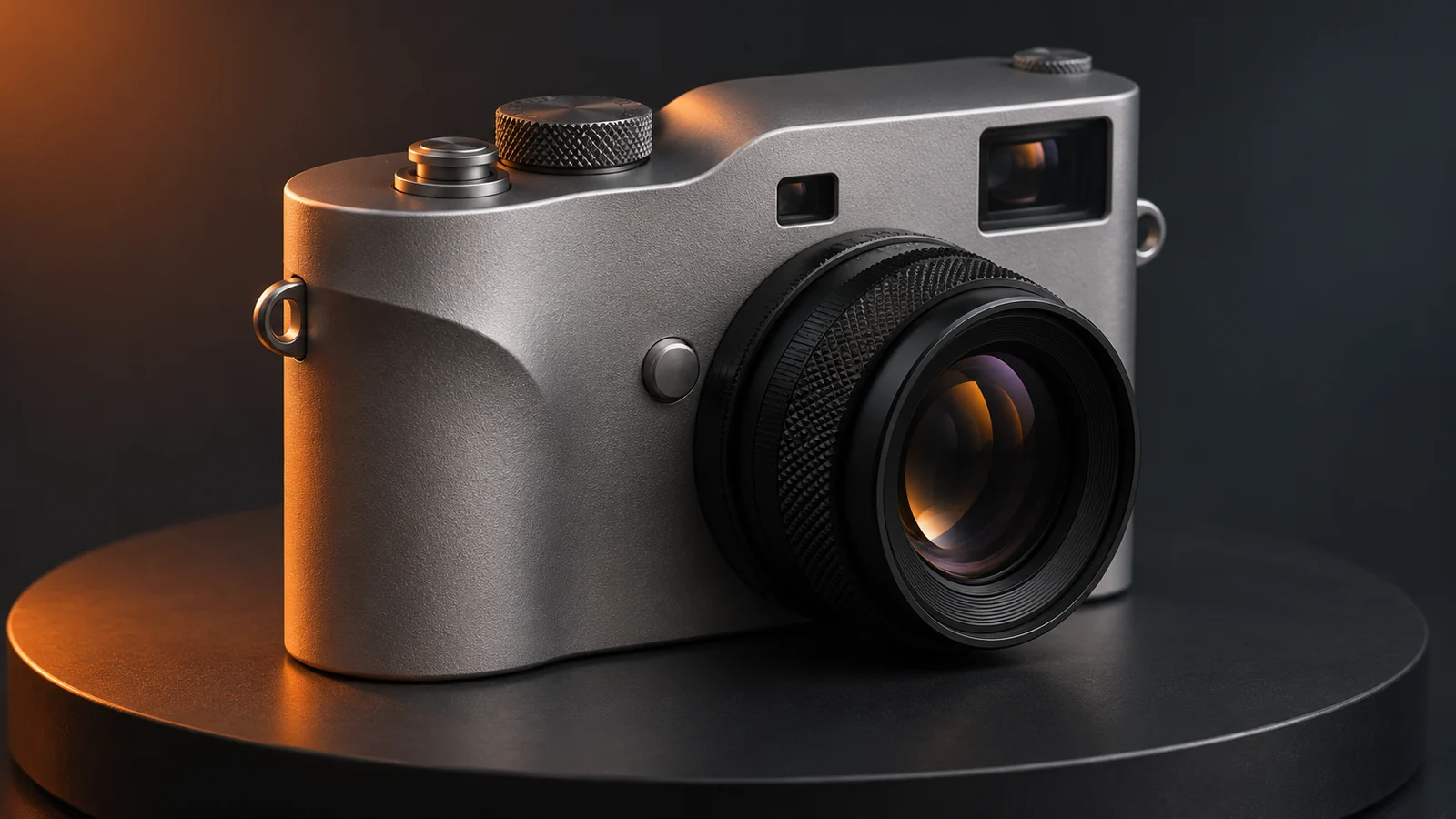
  1. Aluminum camera presented for a turntable product shot
    1

    Light a product the viewer can recognize

    Use a clear photo of a brushed aluminum camera to show MAGI-2 the shape and finish. A separate turntable clip can supply the pace of the reveal. Specify that the camera body rotates while the viewing position stays fixed. On playback, follow the edge of the lens mount as the highlight passes. If it vanishes in glare, ask MAGI-2 to soften the light while retaining the rotation.

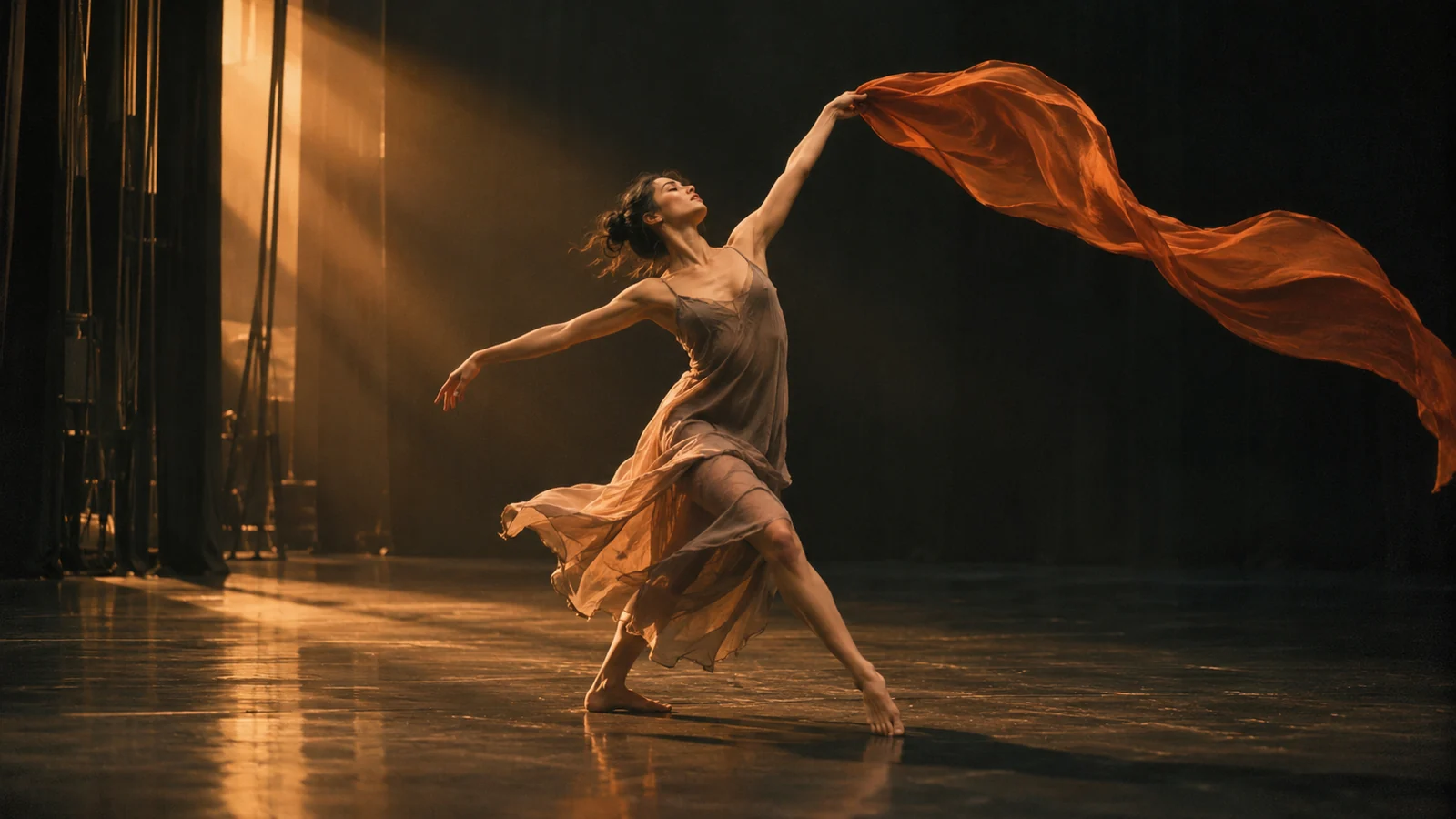
  2. A dancer with a red scarf crossing a theater stage
    2

    Carry a gesture from rehearsal to stage

    Give MAGI-2 a rehearsal clip for the movement and a still of the stage for the setting. Ask the dancer to cross the stage, turn and let a red scarf settle after the turn. If a drum accent matters, include a rhythm reference and identify which step should land on it. Review the MAGI-2 take once with sound for the step and once silently for the shape of the scarf.

First take

Build a MAGI-2 brief you can revise

Think about what a viewer should understand on the first watch. For a short cooking film it might be the instant a sugar crust cracks. A specific moment gives every MAGI-2 revision a clear test.

  1. 01

    Set the frame

    Frame the first MAGI-2 take so it shows both the spoon and the dessert. Give MAGI-2 an image if the glaze or the shape of the dish matters. Leave enough space over the bowl for the hand to enter.

  2. 02

    Write the order

    Describe the spoon hovering, tapping once and lifting a shard. In a MAGI-2 prompt, a verb for each action gives clearer direction than a string of adjectives. Add approximate times when one beat needs more room.

  3. 03

    Listen against the picture

    Ask MAGI-2 for a brittle snap on contact and quiet room tone during the pause. Play the result with headphones and check which frame feels like the break.

  4. 04

    Compare one change

    Keep the description and references for the next MAGI-2 version. Move only the cut or the sound cue. Watching the two attempts back to back lets you choose an edit on pacing alone.

Creative applications

Where to use MAGI-2 in production

Choose the task by the decision you need to make. A director can use MAGI-2 to decide where to put the camera. A designer may use the same model to see whether a material is recognizable in motion.

01

Pitch a scripted exchange

Use MAGI-2 to stage a conversation before a shoot. Try a two-shot through the first line, then switch to the person listening. Compare that with a MAGI-2 version that holds both faces throughout. The difference helps a director decide whose reaction carries the scene.

02

Explore a campaign look

Take an existing product clip into a MAGI-2 edit and ask for one targeted change, such as moving the action from a bright counter to a dark display surface. State which parts should stay. Compare the product silhouette and its contact shadow before selecting the campaign direction.

03

Plan a continuous transition

Use MAGI-2 to explore a continuous camera move between visual styles. For a gallery teaser, a visitor could walk past charcoal studies and enter a painted landscape. Tell MAGI-2 which movement should carry through the change so the transition has a visual thread.

04

Develop a music teaser

Give MAGI-2 an audio reference and select one musical phrase to build around. A slow push toward an empty microphone can end just as the first voice enters. Review the final frame at the intended screen size to judge whether the reveal needs a closer crop.

Questions from creators

Creating and editing with MAGI-2

01

Can I start a MAGI-2 scene with text alone?

Yes. Describe the subject, what changes on screen and what you hear. A line such as “a baker squeezes the paper bag and looks up as the shop bell rings” gives MAGI-2 a sound source, a reason to move and a clear place to point the camera.

02

When should I edit an existing video with MAGI-2?

Choose a MAGI-2 edit when a take already has a performance or camera move you want. Describe the detail to change and the details that should carry over. For a change of costume, review moments where a hand passes in front of the fabric.

03

How much camera direction does MAGI-2 need?

Give MAGI-2 exact cut points for a timed reveal or a music cue. When exploring a story, try giving MAGI-2 just the beats. Its camera planning can suggest viewpoints you can evaluate before committing to a detailed shot list.

04

How do I review a shot with fast movement?

Watch the MAGI-2 clip at normal speed first. Then look at the frames before and after a fast turn or an object passing behind another subject. If the direction becomes hard to follow, widen the framing or split the action across two shots.

MAGI-2 pricing for your next project

Budget for the takes you want to compare. Check the included credits, concurrent batches and renewal schedule before you choose a plan.

Cancel anytime

Starter

$14.99
USD / mo
100 credits ≈ $4.28
For exploring video ideas and developing your first scenes.

What's included

  • 350 workspace credits per month
  • Up to 2 generation batches at once
  • Use credits across creation models enabled in the workspace
  • Guide image creation with references where supported
  • Generation history and result downloads
  • Credits valid while subscribed, cancel anytime
Most Popular

Pro

$39.99
USD / mo
100 credits ≈ $2.50
For creators making video content as part of a regular publishing schedule.

Everything in Starter, plus

  • 1,600 workspace credits per month
  • Up to 4 generation batches at once
  • Up to 4 results per batch
  • Lower cost per AI generation
  • More room for reference-led image exploration
  • Commercial license included
  • Credits valid while subscribed, cancel anytime

Premium

$119
USD / mo
100 credits ≈ $2.16
5,500 credits
For teams planning a larger volume of video projects and creative iterations.

Everything in Pro, plus

  • 5,500 workspace credits per month
  • Up to 8 generation batches at once
  • Up to 4 results per batch
  • Lowest monthly cost per AI generation
  • Built for teams, studios, and visual content workflows
  • Commercial license included
  • High-volume image exploration and visual asset creation
  • Credits valid while subscribed, cancel anytime
For any questions about payment or plans, contact our support team: Contact support

Pay safely and securely with

UnionPay
▷▷

Next take

What happens in your MAGI-2 scene?

Open the MAGI-2 workspace with a single moment in mind. Choose what moves first, which sound draws the eye and what the viewer sees when the shot ends.