01Continuous shot
Walk through five paintings
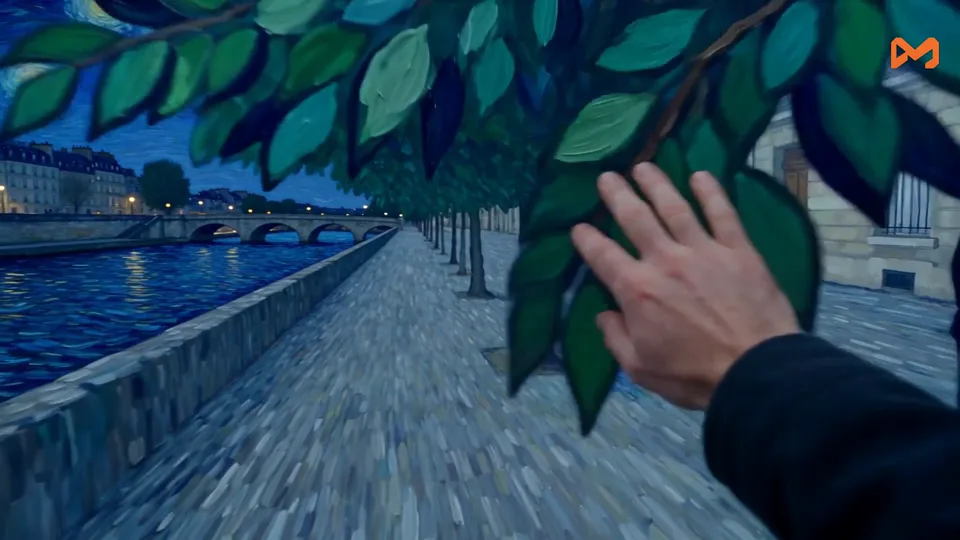
A hand brushes past painted leaves on a riverside walk. MAGI-2 carries the movement into the next painting as the palette and brushwork change.
0:00 / 0:00
MAGI-230s
Sign in to claim 100 starter credits and begin creating
Four films from Sand.ai’s MAGI-2 release. Choose a clip to see how a reference image, a cut point or an editing instruction shapes the result.
A hand brushes past painted leaves on a riverside walk. MAGI-2 carries the movement into the next painting as the palette and brushwork change.
A traveler pauses beneath a bloom taller than she is. The reference sheet fixes her costume and the three settings. MAGI-2 carries those details from an iris hillside to a rose garden and a lily valley.

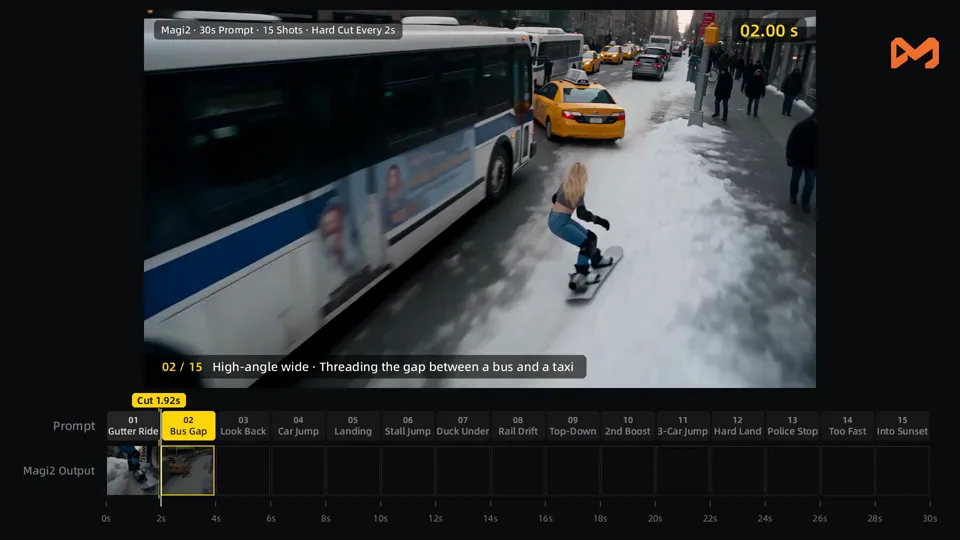
The sample puts the edit timeline underneath the film. At the start, a skateboarder passes a bus on a snowy street. Follow the playhead to see where each new shot begins.
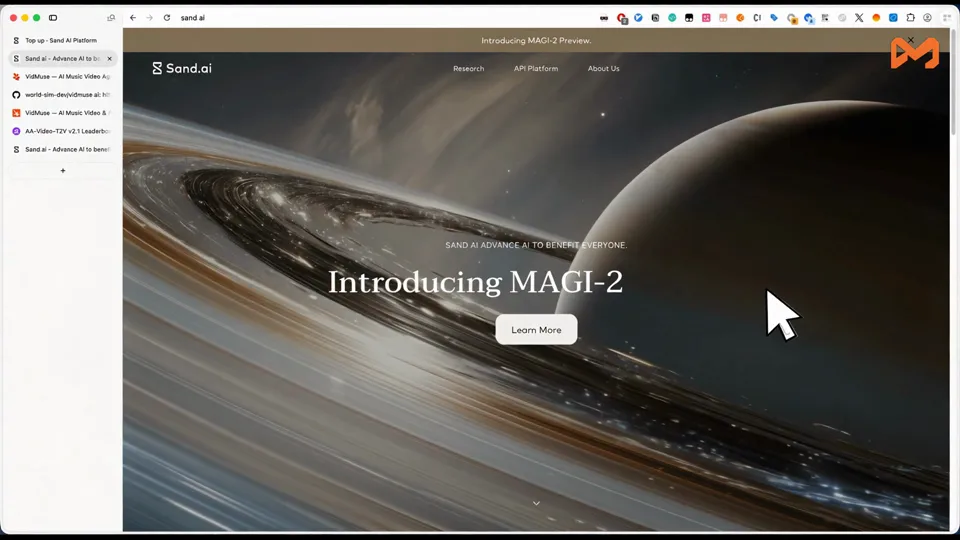
The source is a recording of the MAGI-2 Preview homepage. On instruction, the cursor erases “Preview” and the planet pulls the interface out of view, leaving the title on black.
Picture and sound
MAGI-2 generates up to 30 seconds of 1080p video at 25 frames per second. That gives a scene room for an entrance, an exchange and a reaction. You can write each beat yourself or give MAGI-2 the action and let it plan the coverage.
Give MAGI-2 a line and name the person who says it. When a guest asks for the last table, keep the camera on the host for a moment after the question. MAGI-2 generates speech with lip movement, so you can listen for the pause and judge whether the host’s glance reads as a welcome or a refusal.
MAGI-2 can generate music, ambience and the sounds that objects make. Describe a potter setting a cup on a wooden table. Ask for a soft knock when the base touches the wood and let the wheel hum in the background. Keeping those sounds distinct makes the contact legible even in a wide shot.
Choose from six aspect ratios. Tell MAGI-2 where the subject enters and what should still be visible when the camera moves closer. For a vertical café scene, place the guest in the doorway behind the host. A MAGI-2 close-up can then pick up the host’s reaction without losing the relationship you established.
Ensemble recasting
The strip at the top shows five character references. The street scene below shows the result. In this Higgsfield demo, the video establishes where everyone stands and MAGI-2 uses the photos to recast them.
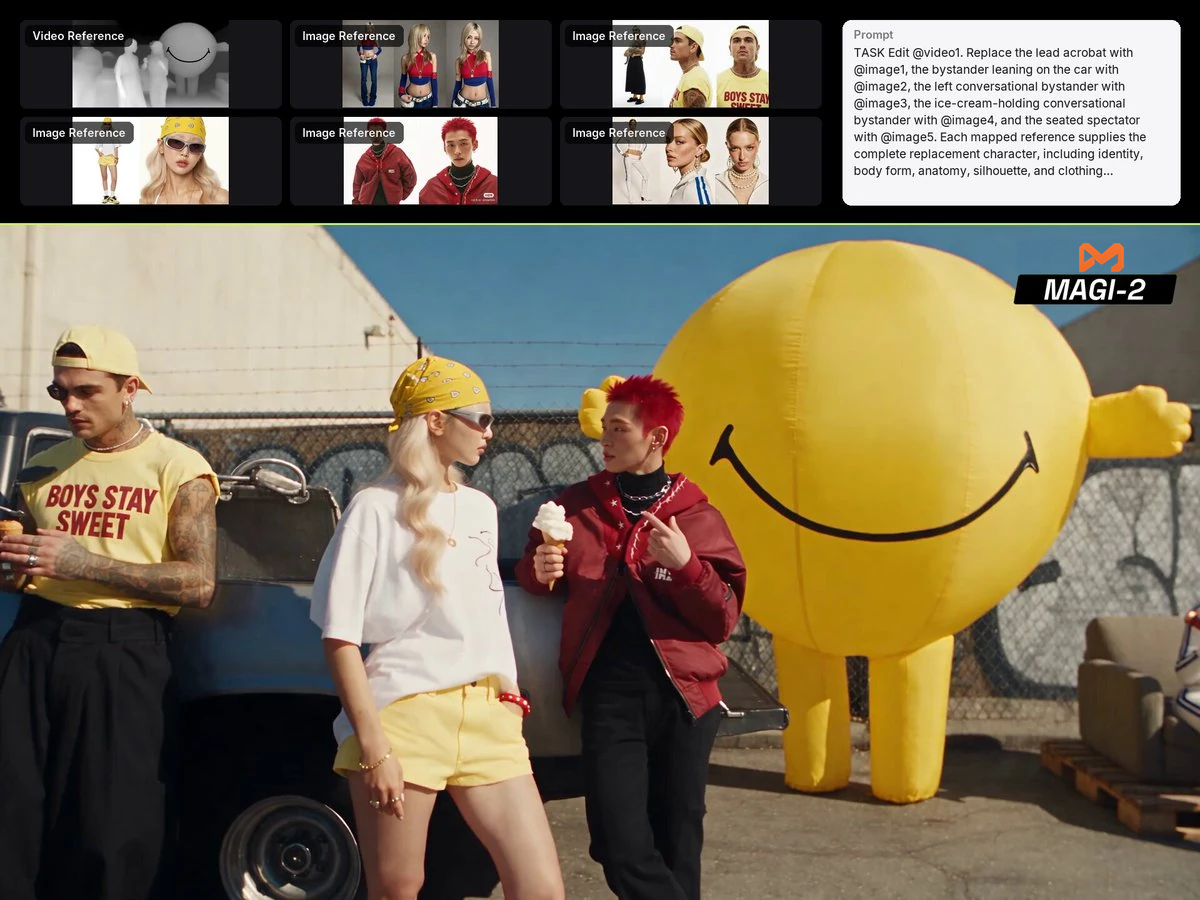
The original prompt picks out the bystander leaning on the car and the two people talking over ice cream. Position and action can identify a character even after their outfit changes.
Number the references and assign each one to a person in the prompt. The yellow headscarf and red jacket are easy details to trace from the reference strip into the street scene.
Follow the eyelines. Do the two people talking still face each other? Their ice cream cones and the car behind them give you fixed points for checking how the group fits together after the recast.
Video references and editing
Compare the upper and lower frames in each example. One turns a rough 3D performance into a finished shot. The other keeps the source shot and removes a row of objects.
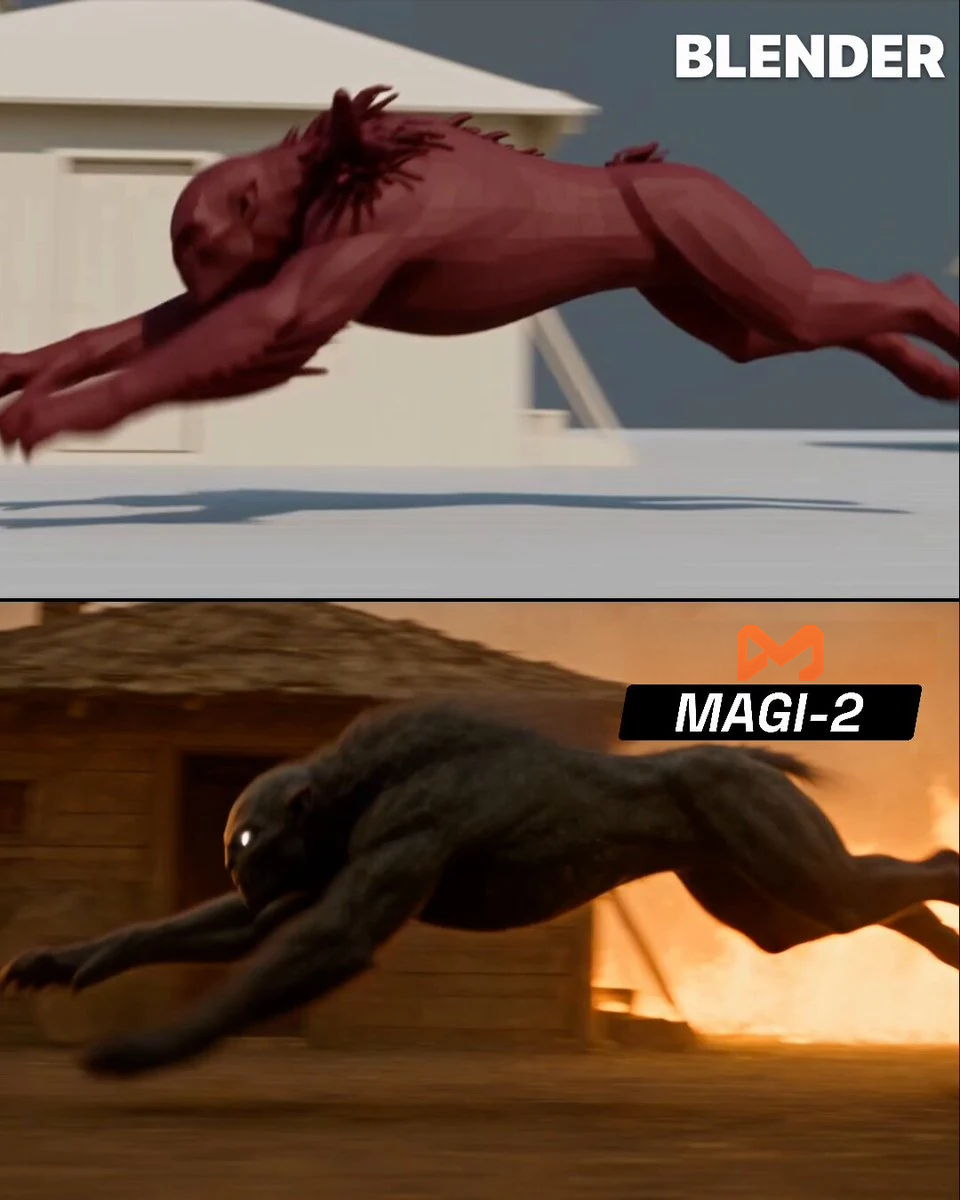
The upper frame shows a simple 3D creature. Below, a dark creature reaches forward in front of a fire. Trace the forelimbs back to the torso to see how closely the poses match. A rough animation can establish the action before you direct the lighting, materials and setting in MAGI-2.
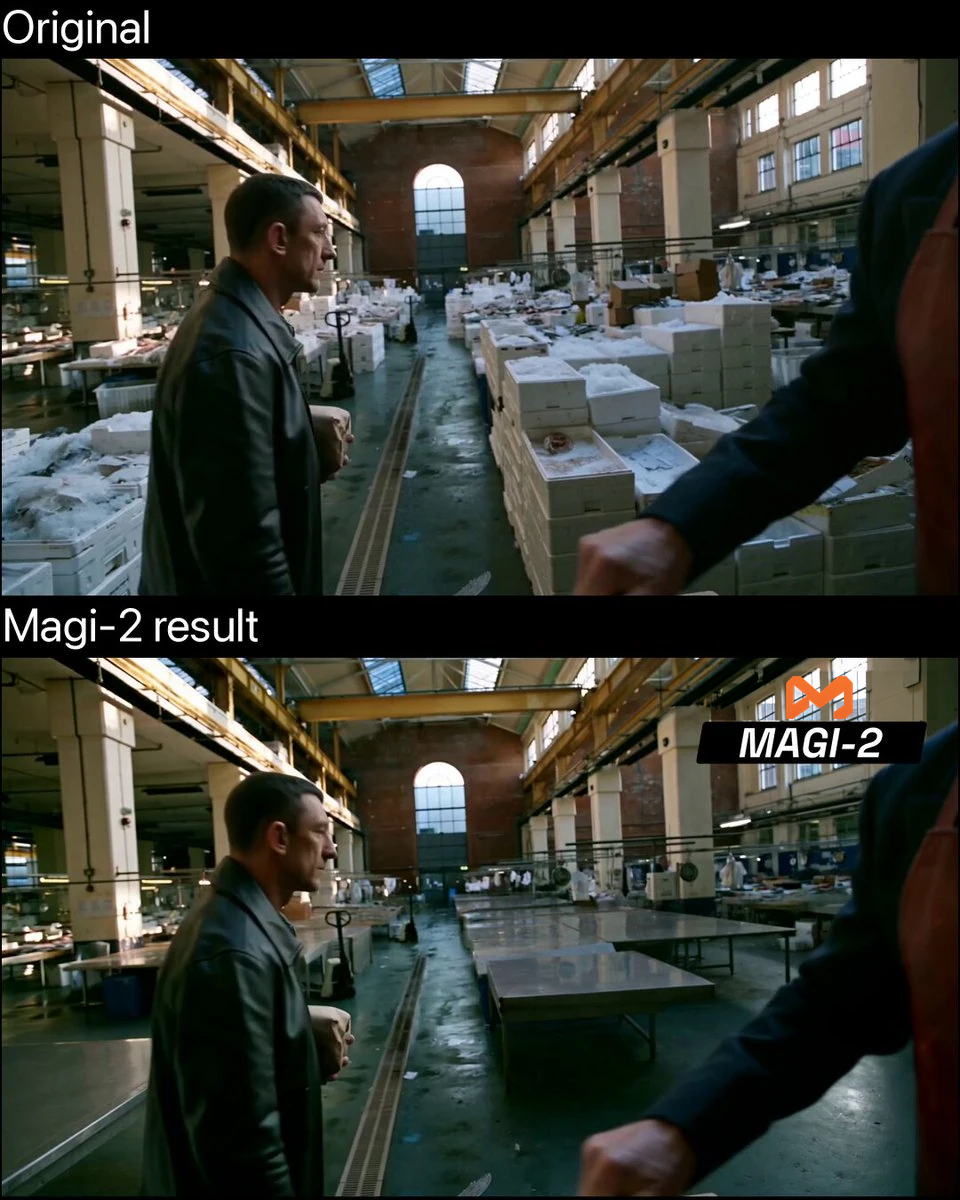
In the upper frame, white boxes stretch from the foreground to the back of the hall. In the edit below, you can see the tables they covered. Use the person on the left, the aisle and the arched window as landmarks to check the scope of the MAGI-2 edit.
First take
Think about what a viewer should understand on the first watch. For a short cooking film it might be the instant a sugar crust cracks. A specific moment gives every MAGI-2 revision a clear test.
Frame the first MAGI-2 take so it shows both the spoon and the dessert. Give MAGI-2 an image if the glaze or the shape of the dish matters. Leave enough space over the bowl for the hand to enter.
Describe the spoon hovering, tapping once and lifting a shard. In a MAGI-2 prompt, a verb for each action gives clearer direction than a string of adjectives. Add approximate times when one beat needs more room.
Ask MAGI-2 for a brittle snap on contact and quiet room tone during the pause. Play the result with headphones and check which frame feels like the break.
Keep the description and references for the next MAGI-2 version. Move only the cut or the sound cue. Watching the two attempts back to back lets you choose an edit on pacing alone.
Creative applications
Choose the task by the decision you need to make. A director can use MAGI-2 to decide where to put the camera. A designer may use the same model to see whether a material is recognizable in motion.
Use MAGI-2 to stage a conversation before a shoot. Try a two-shot through the first line, then switch to the person listening. Compare that with a MAGI-2 version that holds both faces throughout. The difference helps a director decide whose reaction carries the scene.
Take an existing product clip into a MAGI-2 edit and ask for one targeted change, such as moving the action from a bright counter to a dark display surface. State which parts should stay. Compare the product silhouette and its contact shadow before selecting the campaign direction.
Use MAGI-2 to explore a continuous camera move between visual styles. For a gallery teaser, a visitor could walk past charcoal studies and enter a painted landscape. Tell MAGI-2 which movement should carry through the change so the transition has a visual thread.
Give MAGI-2 an audio reference and select one musical phrase to build around. A slow push toward an empty microphone can end just as the first voice enters. Review the final frame at the intended screen size to judge whether the reveal needs a closer crop.
Questions from creators
Yes. Describe the subject, what changes on screen and what you hear. A line such as “a baker squeezes the paper bag and looks up as the shop bell rings” gives MAGI-2 a sound source, a reason to move and a clear place to point the camera.
Choose a MAGI-2 edit when a take already has a performance or camera move you want. Describe the detail to change and the details that should carry over. For a change of costume, review moments where a hand passes in front of the fabric.
Give MAGI-2 exact cut points for a timed reveal or a music cue. When exploring a story, try giving MAGI-2 just the beats. Its camera planning can suggest viewpoints you can evaluate before committing to a detailed shot list.
Watch the MAGI-2 clip at normal speed first. Then look at the frames before and after a fast turn or an object passing behind another subject. If the direction becomes hard to follow, widen the framing or split the action across two shots.
Budget for the takes you want to compare. Check the included credits, concurrent batches and renewal schedule before you choose a plan.
Cancel anytime
Next take
Open the MAGI-2 workspace with a single moment in mind. Choose what moves first, which sound draws the eye and what the viewer sees when the shot ends.